How Do I Check My iPhone for Malware: A Complete Guide
If your iPhone suddenly feels wrong, slower, hotter, or louder in the background, do not waste time hunting for a magic antivirus button. How do I check my iPhone for malware is not the right question when you expect a desktop-style scan, since iOS does not work that way. The correct question is this: what did the attacker leave behind, and what changed in device behavior or configuration?
That is the triage approach security teams use on endpoints, and it applies to iPhone incidents as well. You are not looking for a clean virus signature. You are checking for battery drain, data spikes, unknown profiles, suspicious apps, jailbreak indicators, and account-level changes that suggest compromise.
Table of Contents
- Why You Can't Just Scan an iPhone for Malware
- Visible Signs That Something Is Off
- Step-by-Step iPhone Security Audit
- Device Integrity and Apple ID Review
- Built-In Tools, App Store Apps, and Enterprise Options
- Immediate Containment If You Suspect Compromise
- How Security Teams Can Monitor iPhones at Scale
Why You Can't Just Scan an iPhone for Malware
An iPhone does not behave like a Windows laptop, so a conventional antivirus outcome should not be expected. Apple Community guidance pulls no punches, “there is no software that can do a virus scan on your iPhone”. The operating system blocks the broad file access desktop antivirus tools rely on, so the whole model of running a scan and waiting for a green checkmark falls apart on iOS, and sandboxing by Apple is part of why the platform is harder to inspect in the first place. See cyber security help for Australians if you want a straightforward explanation of how compromise can appear before you begin investigating.
This is another reason jailbreaking carries such weight. When the safeguards that hold iOS locked down are stripped away, the attack surface grows, and both deeper inspection and deeper compromise become possible. On a standard iOS device, it is safer to regard malware checking not as a scan but as a behavior-and-configuration audit.
Practical rule: if a security app from the app store says it scanned your whole iPhone, remain skeptical. On iOS, the checks that matter are those that expose unusual behavior, unfamiliar configuration, or account changes.
The takeaway is clear. Do not pursue a button that does not exist. Begin with the signals attackers leave behind, then verify whether the device has been altered, managed, or jailbroken. That provides a genuine triage path rather than a false sense of certainty.
Visible Signs That Something Is Off
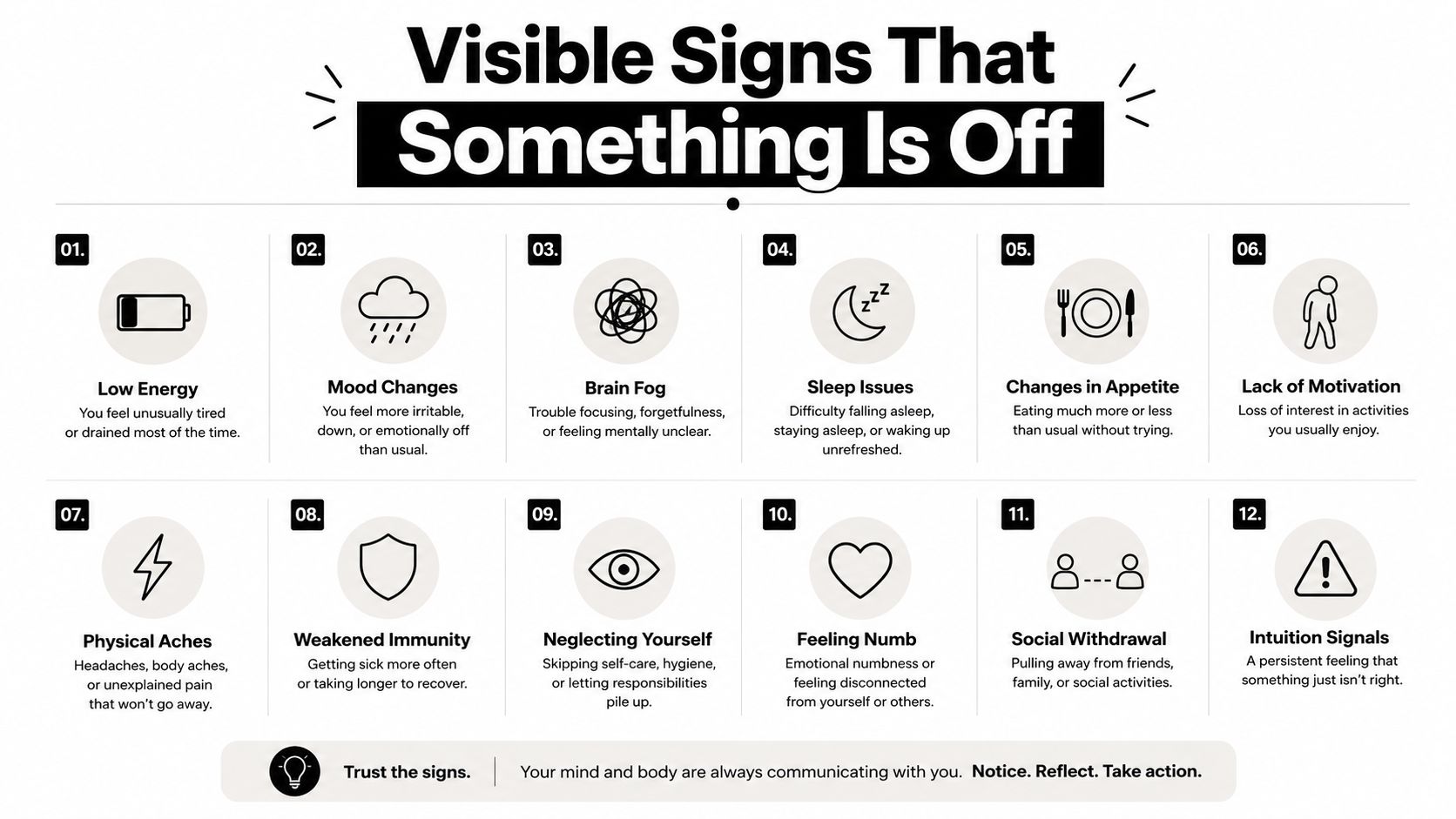
The initial review should be quick and objective. You are seeking patterns that deviate from typical iPhone use, not a single dramatic symptom that confirms everything. One noisy app update can look bad in the charts, so the task is to distinguish ordinary activity from a true anomaly.
The signals that matter most
Open Settings → Battery and check the last 24 hours and 10 days views. If a single app is draining power in the background and you did not just spend the day streaming video, that deserves attention. Then open Settings → Cellular and check for an app with unusual mobile data usage, particularly if that app should not need to be active when Wi-Fi is off.
The same reasoning holds for storage and clear app drift. If the App Library includes something you never installed, consider it suspicious unless proven otherwise. A calendar app filled with spam invitations, recurring Safari redirects, or pop-ups that come back after you close them all indicate persistence, not mere bad luck.
An odd battery chart alone is not proof. An odd battery chart combined with background data use and an unknown profile is a far stronger signal. That is why the review must be holistic rather than piecemeal.
What to ignore and what to escalate
If the battery spike coincides with a restore, a major app update, or a day full of media, wait before deleting anything. If the spike continues across both the shorter and longer views, escalate it. If you also notice crashes after a particular event, or the phone begins overheating for no clear reason, add that to the short list for closer review.
The mark of a good triage rule is bluntness. A single oddity is a clue. Two or more unrelated oddities form a pattern. The goal is to prevent overreaction to ordinary app churn while identifying the combinations attackers consistently leave behind.
Later in the article, the same reasoning proves valuable for SOC telemetry. Across a fleet, battery abuse, background data abuse, and configuration drift are signals you can correlate.
A brief video can help non-technical users identify the same anomalies quickly.
Step-by-Step iPhone Security Audit
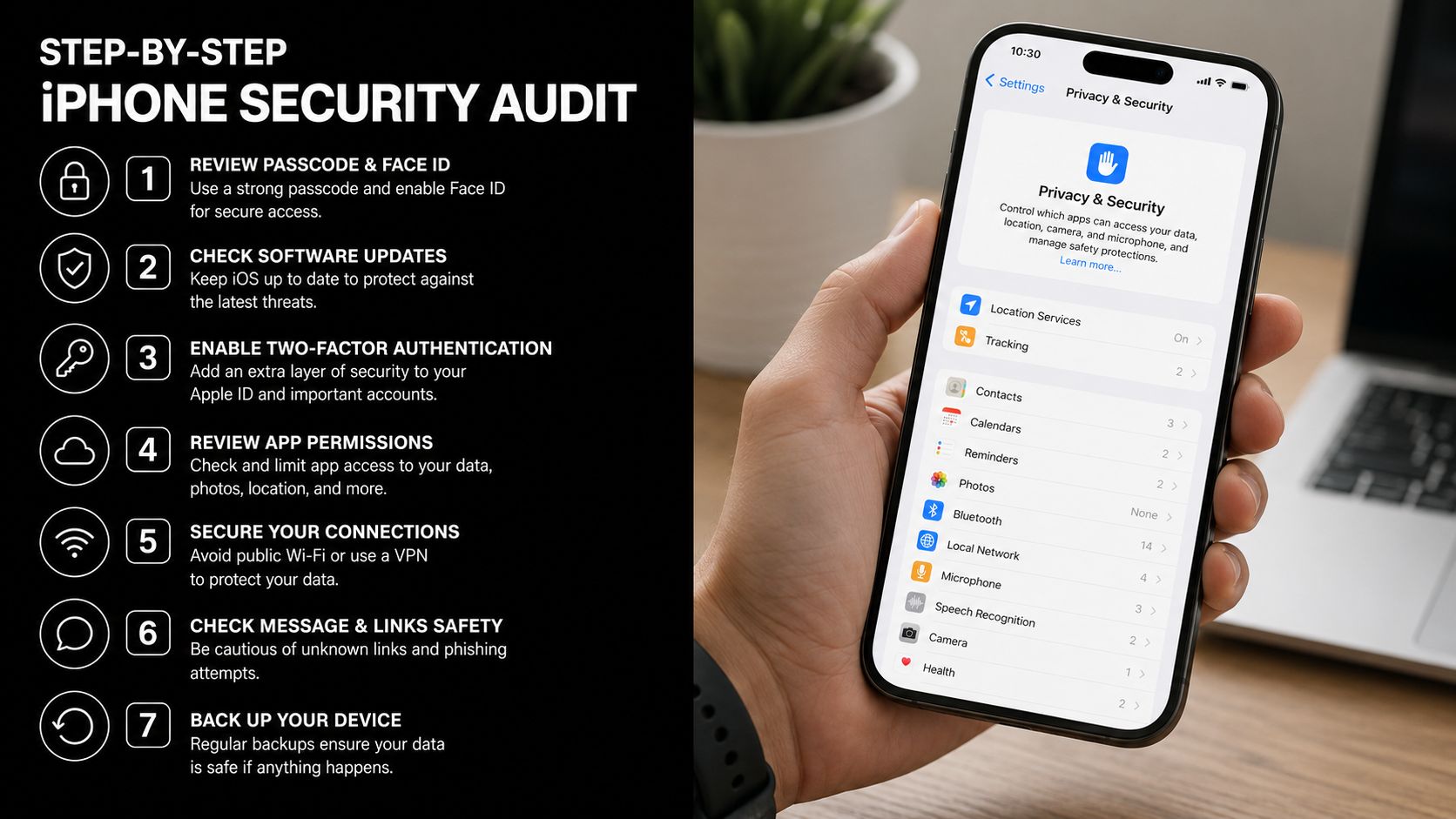
Start with Settings → Battery and avoid chasing one obvious villain. Find an app that controls the chart in a manner inconsistent with your normal use, then compare the 24-hour view to the 10-day view to distinguish a brief spike from an ongoing issue. If that app continually shows background activity and you did not deliberately use it in that way, that is a genuine clue.
Move through the phone like a responder
Go next to Settings → Cellular and review mobile data one app at a time. Significant background use by a messaging app, browser, or tool you seldom use warrants investigation, particularly when the timing matches the battery anomaly. Then open the App Library and check for anything you do not recognize, above all an app that appears to be a utility, travel aid, or promotional download you never intended to retain.
The strongest red flag is in Settings → General → VPN & Device Management. If the profile list is not empty and you do not knowingly use an MDM, school, work, or VPN profile, delete the unknown entry at once. That is not a cosmetic setting. It is a control plane for the device.
Don't miss the quieter persistence paths
Review Settings → Privacy & Security for anything that seems out of place, then check Safari → Extensions and switch off extensions you do not recognize. Purging website data can also eliminate adware-style persistence that outlasts a basic cleanup. If you use keyboards or accessibility-related add-ons, review them as well, since attackers prefer to hide where users do not check.
Best practice: handle profiles, extensions, and suspicious app installs as one linked issue. Attackers seldom depend on only one foothold when seeking persistence.
The ESET guidance aligns with the practical method because the useful checks are the ones that expose background behavior, unknown profiles, and unfamiliar apps in a single pass instead of as separate tasks. As stated earlier, that is the real iPhone triage model, not a sham scan.
Device Integrity and Apple ID Review
On-device settings may appear clean even though the account is already exposed. That is why the next step is device integrity, followed by identity. Open Settings → General → Software Update and verify iOS is completely up to date. If it is not, fix that first, since unpatched devices are where trouble most easily persists.
Look for jailbreak and management red flags
A jailbroken iPhone instantly alters the threat landscape. Look for package managers such as Cydia or Sileo, and do not treat them as harmless if you did not install them intentionally. The same applies to unknown management profiles, which remain among the biggest warning signs of elevated compromise risk.
Check the Apple ID device list and sign out any device you do not recognize. If a device should not be present, the compromise may be at the account layer, not only on the phone. That difference matters because removing apps will not fix an exposed identity.
The correct order of steps is simple. Update iOS, delete unknown apps and profiles, erase Safari history and website data, restart, then monitor the device's behavior for another day. If the odd behavior stops after cleanup and restart, the issue often indicates a rogue profile or account problem rather than something deeply embedded.
Keep evidence before you erase anything
Before you delete evidence, record the precise app names, profile names, battery and cellular timestamps, and any unrecognized Apple ID devices. If the issue becomes an incident review, that record is what makes your timeline defensible. Do not depend on memory once you have begun cleaning.
A frequent error is placing too much trust in third-party mobile antivirus findings. On iOS, those apps can aid hygiene and awareness, yet the App Store sandbox restricts deep inspection, so they are not a final verdict. For more context on evidence handling during a compromise review, see evidence preservation guidance for incidents.
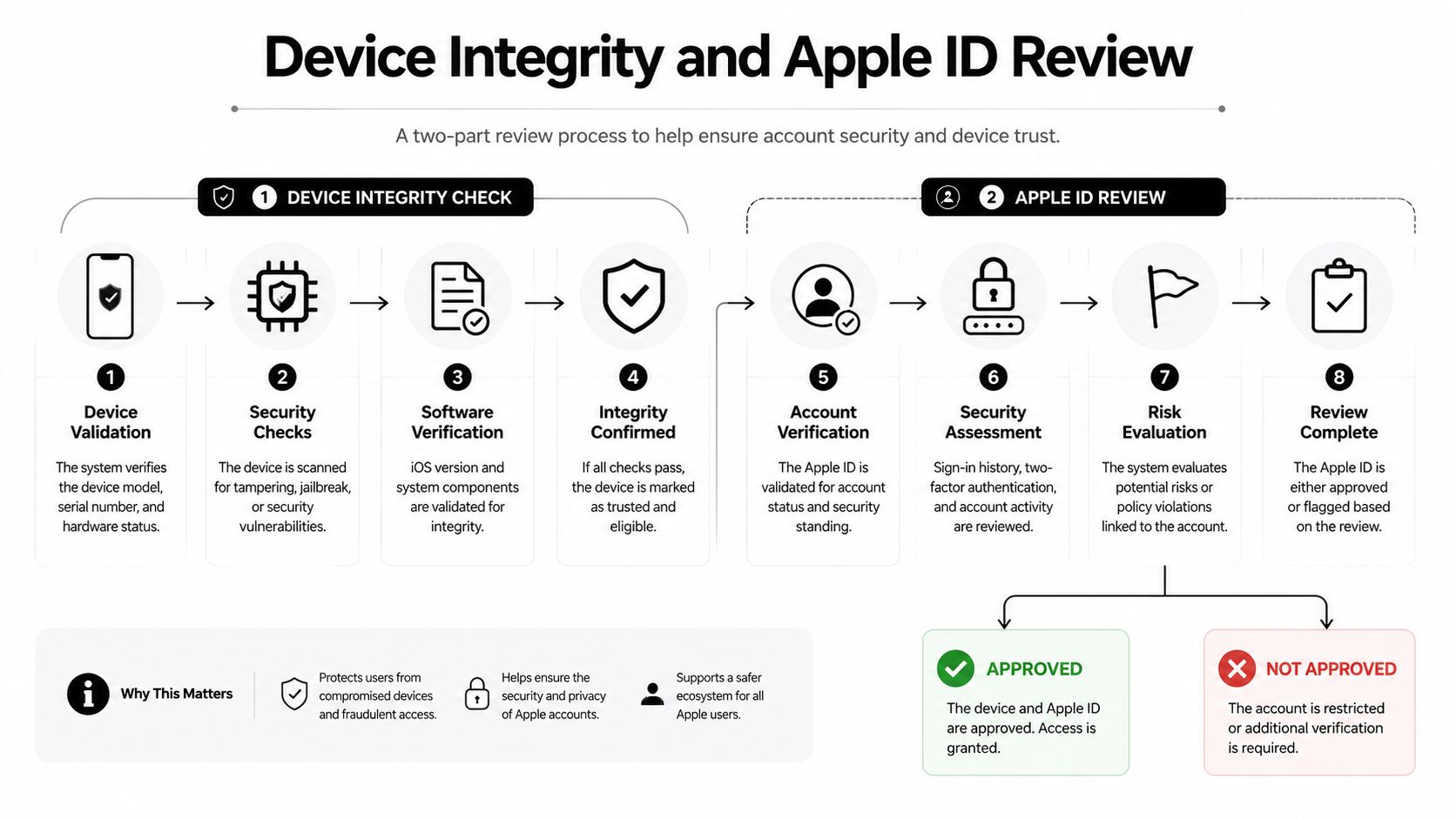
For a detailed reminder of the integrity-first approach, this walkthrough on device integrity checks for iPhone compromise review aligns with the same order of operations, update first, then validate, then clean.
Built-In Tools, App Store Apps, and Enterprise Options
The appropriate tool varies by user. Most consumer iPhone risk is addressed through built-in controls, not by installing additional apps. For a personal device, Lockdown Mode, Stolen Device Protection, Safety Check, and Sign in with Apple count for more than a stack of overlapping security tools.
Match the control to the problem
Security apps in the App Store from vendors such as Lookout, Malwarebytes, and Norton help with phishing defense, safe browsing, and breach monitoring. They are not genuine on-device malware scanners. Enterprise devices require an entirely different layer, since corporate response relies on policy, posture, and remote control.
That's where MDM platforms such as Jamf, Intune, and Kandji are appropriate. They can enforce app allow-listing, deliver posture checks, and enable remote wipe if the device is exposed. A SOC also needs those signals centralized, which is where SIEM and XDR platforms are needed instead of consumer apps.
| Layer | Best For | Key Capability | Limitation |
|---|---|---|---|
| Built-in iOS protections | Personal users | Hardens the device and limits blast radius | Doesn't investigate every suspicious event |
| App Store security apps | Consumer hygiene | Phishing checks, safe browsing, breach awareness | Can't perform a full on-device malware scan |
| MDM platforms | Corporate fleets | Policy enforcement, remote wipe, posture visibility | Requires enrollment and admin control |
| SIEM and XDR | SOC and IT teams | Correlation across mobile, identity, and endpoint signals | Depends on good telemetry |
Use tools in the right order
If a device appears compromised, contain it before anything else, then change passwords beginning with the Apple ID and main email, then examine account access, and only afterward determine whether restoration is necessary. If you require a platform capable of taking in logs, linking mobile alerts, and connecting them to wider detection processes, Unified Security Stack's endpoint protection platform has a role in enterprise discussions, not as an iPhone scanner, but as a way to consolidate the evidence.
This section isn't focused on piling up products. It's focused on sidestepping the familiar error of purchasing a phone antivirus app when identity control, MDM posture, or centralized detection was actually what you required.
Immediate Containment If You Suspect Compromise
When the signals appear genuine, halt browsing and begin containment. Separate the device from untrusted Wi-Fi, activate Airplane Mode, and prevent the device from communicating with anything outside your control. That gives you time and stops additional data leakage while you handle the account side.
Do the account work in the right order
Log out unfamiliar Apple ID devices first, then change passwords, beginning with the Apple ID and email account. Activate two-factor authentication on critical accounts if it isn't already active. Check for unauthorized app-specific passwords as well, because they can keep access alive even after a password change.
If the phone belongs to work, notify the admin team before wiping anything. If it's personal, back up only the data you trust, not a complete indiscriminate copy of the problem. Restoring from an unknown or pre-compromise backup can pull the threat straight back onto the phone.
Sometimes an erase all content and settings reset is warranted. Apply it when the behavior continues after cleanup, when a profile keeps coming back, or when you have solid reason to think the device itself remains contaminated. Restore only from an encrypted iCloud backup or an encrypted local backup that you know predates the problem.
For teams that need to preserve artifacts during a response, ScrapeCreators' API insights offers a useful illustration of why organized collection and repeatable extraction are essential when constructing evidence workflows. That same discipline holds true here. Without a record of what changed, you cannot tell whether you contained the incident or merely made it harder to prove.
How Security Teams Can Monitor iPhones at Scale
A fleet isn't inspected manually; it is monitored through telemetry. The inputs that matter are MDM posture events from Jamf or Intune, enrollment changes in Apple Business Manager, syslog from managed Wi-Fi gateways, mobile threat defense alerts from Lookout or Jamf Protect, and identity events from Microsoft Entra or Okta. These are the signals that allow a SOC to see a pattern rather than one worried user report.
Correlate the same signals users see on the phone
A complaint about battery drain gains meaning when it aligns with a posture change, an unknown profile alert, or an identity anomaly. That is where a platform such as Unified Security Stack XDR fits, because the value lies in correlation, not in acting like an iPhone scanner. Unified Security Stack can unite mobile alerts, endpoint events, network telemetry, and identity data in one workflow, then apply adaptable correlation rules across a large IOC corpus.
That also matters in regulated environments. The same detections can be tied to HIPAA, GLBA, PCI, CMMC, ISO 27001, and SOC 2 controls, so the evidence isn't merely operational; it's audit-friendly. If a fleet begins to display the same unknown-profile pattern or a repeated anomaly connected to managed devices, the SOC should handle it as a containment event, not a help desk ticket.
The mental shift is easy to grasp. iPhone security is telemetry plus hygiene, not a single scan. Teams that continue waiting for a magical antivirus verdict keep overlooking the compromise signals that matter most.
If you want a clean way to centralize mobile, identity, endpoint, and compliance evidence in one place, visit Unified Security Stack and see how its SIEM, SOAR, and XDR stack can reinforce the same triage discipline described here. It is designed to correlate the signals iPhones expose, not to pretend iOS behaves like a desktop antivirus target.